June 28th, 2026
New

BA Copilot now includes a Presentation Layer for process maps.
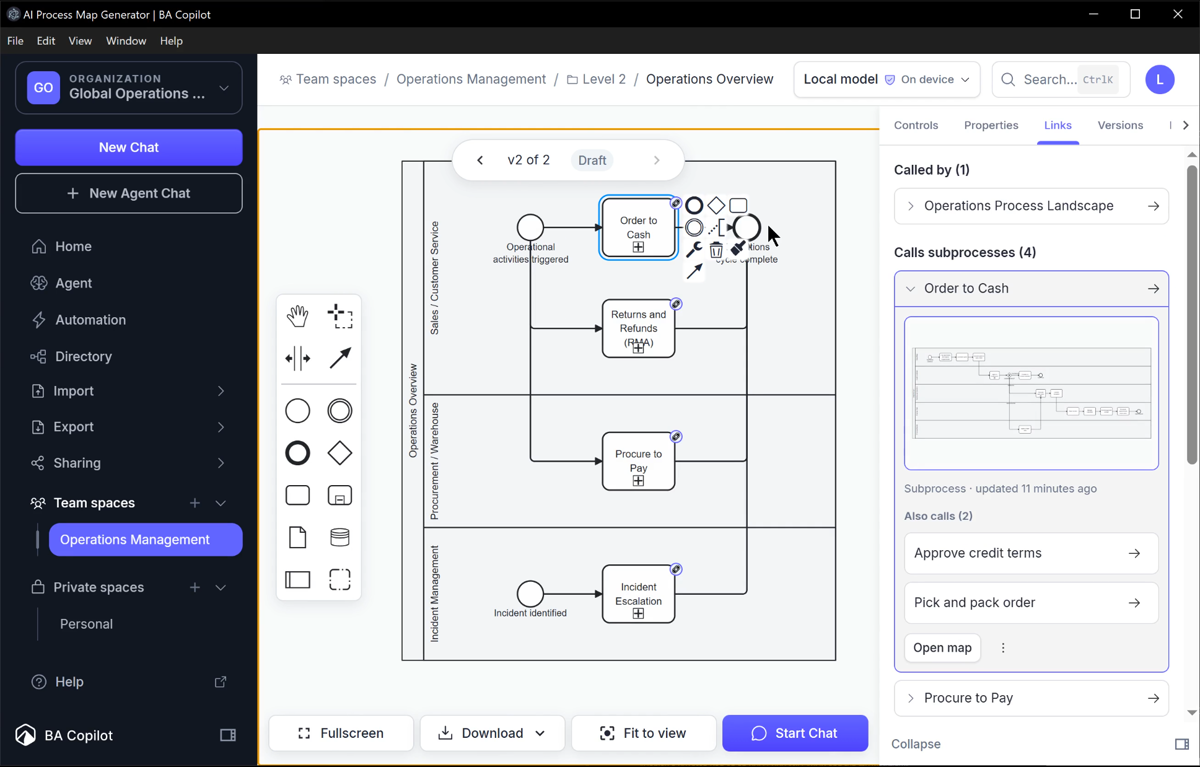
You can add titles, labels, callouts, highlight boxes, and arrows on top of a process map without changing the underlying BPMN. The annotations are stored separately from the BPMN XML, so the process model stays standards-compliant while the presentation view becomes easier to polish for clients and stakeholders.
Annotations can follow specific BPMN elements, move with pan and zoom. If a linked BPMN element is removed, BA Copilot keeps the annotation and surfaces it in a review tray instead of silently deleting it.
PNG and PDF exports can include the presentation layer, while BPMN and Visio exports remain clean BPMN-only outputs.
June 28th, 2026
New

BA Copilot now supports As-is / To-be process map comparisons.
You can link a current-state process map with a future-state version, then compare the diagrams and metadata side by side. The comparison view highlights what changed, tracks employee time saved, and lets you choose which standard or custom fields to include.
Comparisons can also be exported as focused PDF or Word documents, so you can share the before-and-after view with clients, stakeholders, or delivery teams.
This helps turn process mapping into a clear improvement story: what changed, why it matters, and how much time it can save.
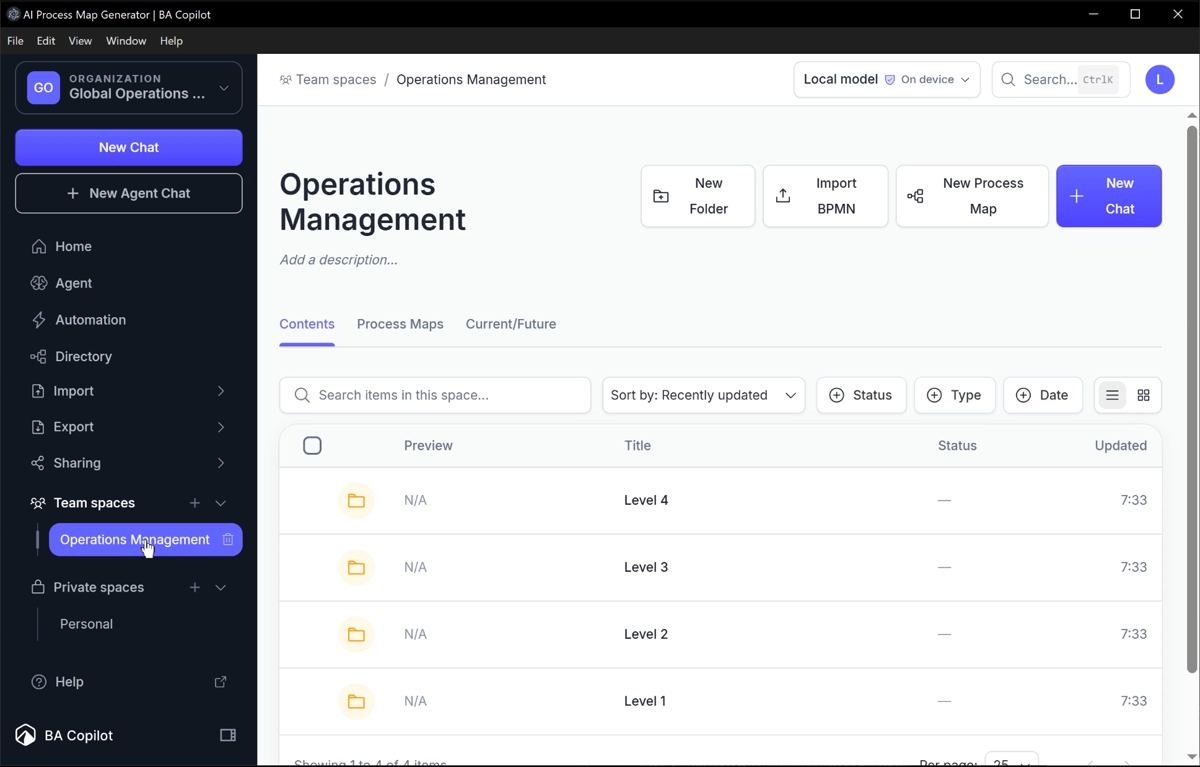
To try it: open a workspace from your dashboard and click the 'Current/Future' tab.
June 28th, 2026
New

BA Copilot now lets you personalize the AI assistant with custom instructions and reusable prompt templates.
Custom instructions let you save guidance for an organization or workspace so BA Copilot can follow your preferred terminology, standards, tone, and process-mapping approach without you repeating the same context in every prompt. Workspace instructions take precedence when you are working in that workspace, and you can switch instructions off for a single message when you need a clean run.
Prompt templates let you save repeatable BA workflows and insert them into the chat composer from the + tools menu or the / slash menu. Placeholder fields are highlighted after insertion so you can quickly fill in the parts that change.
Together, these make the assistant easier to shape around your consulting style, client standards, and recurring process-analysis workflows.
To set it up, open settings and click 'prompt templates' or 'custom instructions'.
June 28th, 2026
New
BA Copilot can now export process maps as editable Word documents as well as PDFs.
In the export flow, choose Word document (.docx) from the new Format selector. BA Copilot uses the same map selection and export settings as the PDF flow, then creates a Word document with a cover page, optional AI summary, process overview pages, custom-property details, and full-page BPMN diagrams.
This is useful when a process map needs to become a working handover, review pack, client document, or internal improvement plan. You can keep the BPMN diagram in the document, then edit the surrounding explanation, summary, and notes directly in Word.
If you also include BPMN or Visio files in the export bundle, BA Copilot packages the Word document into the ZIP alongside those files.
To try it: open the export page and choose Word document (.docx) from the Format selector.
June 28th, 2026
New

BA Copilot now has a free BPMN process map comparison tool.
Upload two BPMN files, such as a current-state and future-state process map, and compare them in the browser. The tool shows the diagrams side by side, highlights added, removed, and changed elements, and includes a metadata comparison table for the selected fields.
You can also export the comparison as a PDF or Word report, using the same comparison engine as the BA Copilot dashboard As-is / To-be workflow.
It is built for process improvement work where the output needs to show the real difference between two process maps, not just two separate diagrams.
June 28th, 2026
Improved
BA Copilot has reorganized the dashboard sidebar and settings area.
The sidebar now has clearer sections for the organization selector, Spaces, and Sharing. Sharing starts collapsed, so the main dashboard navigation is easier to scan while still keeping shared spaces close at hand.
API, MCP, and Team now live inside Dashboard Settings, at /dashboard/settings/api, /dashboard/settings/mcp, and /dashboard/settings/team. Old dashboard links for API, MCP, and Team now redirect permanently to the new settings pages, including query parameters, so existing bookmarks, invite flows, and in-product links keep working.
The update also includes fixes for team invite navigation, organization switching, and new-chat handoff reliability.
June 28th, 2026
New

BA Copilot now has a free Visio generator.
Describe a process in plain English, generate an editable process map, and download it as a real Visio (.vsdx) file without signing in.
It is useful when you need to give a team a Visio file, but do not want to start from a blank canvas or manually rebuild BPMN shapes.
June 18th, 2026
New

You can now receive a report on the highest value places to automate, and then request an expert to get it implemented.
The report ranks each opportunity by the time and money it would save, and shows the implementation route and what to keep human.
It turns a process map into a concrete plan to cut cost and save time, not just documentation.
June 18th, 2026
New

BA Copilot now has a public AI process-mapping tools benchmark.
The benchmark compares seven AI process-mapping tools on the same three prompts, using a fixed weighted rubric: process-map quality, speed, value, and ease of use.
Each tool includes scored results, observed timings, diagram screenshots, and the exact copy-paste reproducibility prompt used for the comparison.
The practical difference: process teams and consultants can compare AI process-mapping tools using transparent examples instead of generic feature lists.
Read the benchmark: https://ba-copilot.com/ai-process-mapping-tools-benchmark
June 18th, 2026
New

BA Copilot now lets you set the default appearance for new process maps.
New maps generated in chat, agent chat, import, API, or MCP can start with your saved theme, including the default grey pool and lane styling. Manually drawn pools, lanes, and tasks now pick up the default theme as soon as you drop them onto the canvas.
The Appearance panel keeps existing map colours by default. Colours added by you or the AI stay in place unless you choose to overwrite them for that map.
Pro users can save custom process-map colours; everyone can choose between the built-in Default and Classic themes.